Rollout Inline Controls & Dual-Stick Guide
How each stick maps to feet, spins, jumps, grinds, and cess slides in Early Access.
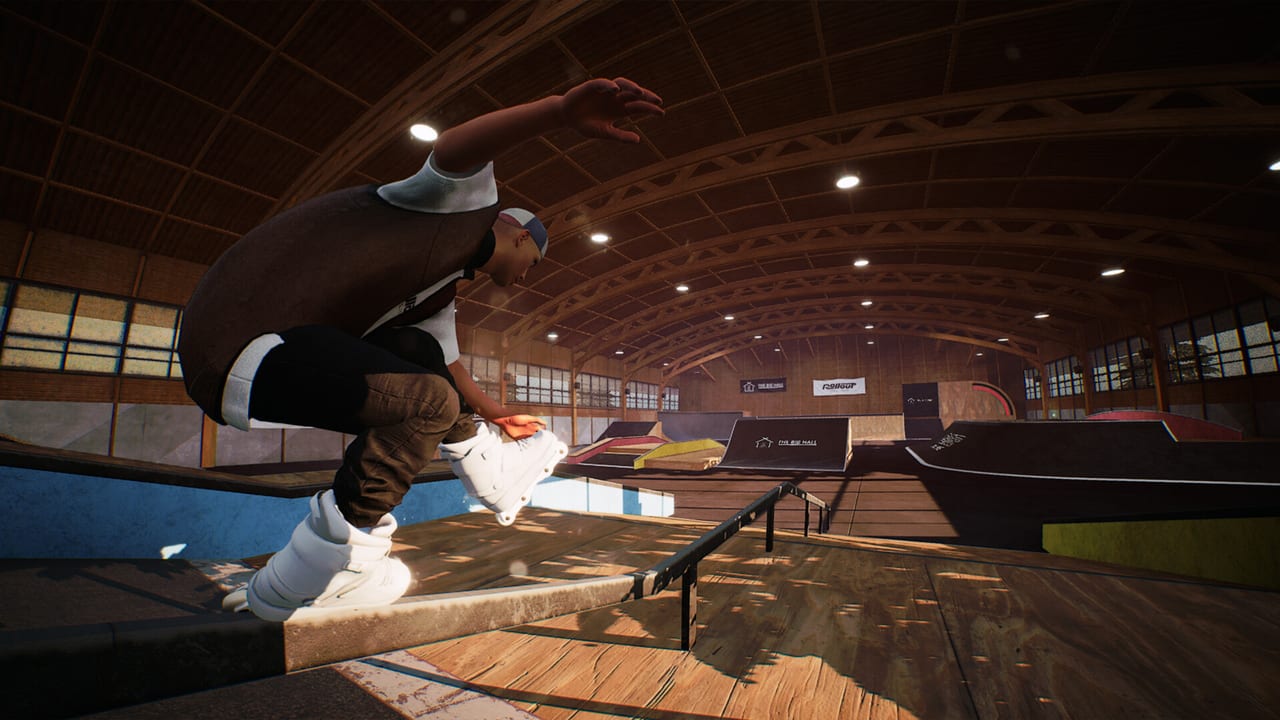
Rollout Inline’s identity is its control scheme. The game was built for pads, not keyboards, and the Steam page is blunt: a controller is required and mouse-and-keyboard play is unsupported. This guide explains how the sticks divide labor, how dual-stick grinds create a huge stance vocabulary, and how settings plus Steam Input keep the feel trustworthy on Xbox, DualShock/DualSense, and Steam Deck.
If you have not finished the boot checklist, skim Getting Started first. Hardware quirks belong on Controller Setup.
Stick roles at a glance
- Left stick — steering and spinning. On the ground and in lines, the left stick aims your skater and drives spin control. Think of it as your upper-body and board direction channel while rolling.
- Right stick — jumping. Pop lives here. Jump timing, pop height, and how you leave a lip or bank are right-stick conversations first.
- Both sticks together — grinds and cess slides. Dual-stick input maps each stick to a foot. That is the secret to the large grind selection: you are not picking from a tiny preset wheel so much as placing feet on the obstacle.
Once that mental model sticks, the rest of the move set—free spinning and flipping, air grabs, toe/heel rolls, handplants—reads as extensions of momentum and foot placement instead of random button chords.
Riding and steering fundamentals
Start every practice session with pure riding. Draw wide S-curves across flat ground using only the left stick. Add gentle spins without leaving the floor. Notice how momentum carries; Rollout Inline is physics- and momentum-based, so limp stick inputs produce limp lines. When you can roll, face a new direction, and settle without panic, add right-stick hops. Jumping is not a separate mini-game—it is how you reach rails, clear gaps, and leave vert.
Optional balancing mechanics can be enabled if you want a tighter sim edge. If you are still building muscle memory, practice with balancing off or on a lower difficulty until corrections feel automatic. Difficulty settings exist so the same dual-stick language can serve casual sessions and stricter ones.
Dual-stick grinds explained
Approach a rail with speed you can still steer. As you lock in, think left foot / right foot rather than “press grind.” Small stick asymmetries change which edges and combinations you hold. That is why the feature list highlights a huge grind selection with creative freedom: the input space is combinatorial.
Drill progression:
- Enter a rail with a neutral, stable dual-stick hold.
- Change one stick slightly mid-grind and feel the stance shift.
- Exit to flat without a secondary trick.
- Exit into a cess slide once exits feel planted.
- Only then add spins or flips on and off the obstacle.
Ragdolls are teachers. If you constantly over-rotate off the end of a rail, you are usually asking the left stick for more spin than your remaining rail length allows. Shorten the ambition, then rebuild.
Cess slides, rolls, and plants
Cess slides are part of the dual-stick family—use them as controlled exits and style connectors, not panic brakes. Toe and heel rolls extend how you ride transitions and cope with awkward landings. Handplants belong to vertical and lip language; approach them after your air sense from right-stick pops feels consistent. Full expression tips continue in Tricks and Grinds, and a beginner-to-advanced ordering lives on Trick Difficulty.
Settings that change freedom
The store notes that alternative controls for spinning can be configured in settings, unlocking more control and freedom of movement. If your left stick feels overloaded because you are steering, spinning, and managing a grind foot at once, test those alternatives in a quiet corner of any map from the Maps Overview. Change one option at a time, then skate five minutes before judging it.
Also confirm:
- Vibration / force feedback preferences (Xbox pads are recommended partly for feedback).
- Any Steam Input layer that might remap sticks before the game sees them.
- That the controller was connected before launch—hot-plugging after boot is a common source of “dead stick” confusion.
Steam Deck and non-Xbox pads
Steam Deck Verified means the control story is intended to work on Deck hardware, but you should still verify community layout choices inside Steam Input if a default feels off. DualShock and DualSense users should prefer USB when troubleshooting, then adjust Steam Input. Details and recovery steps are collected in Controller Setup.
High FPS remains part of “controls.” Sub-60 frame rates add latency feel to stick corrections. If inputs feel muddy, visit System Requirements before reinventing your grind stance.
Practice plan (30 minutes)
- Five minutes left-stick only riding and spins.
- Five minutes right-stick hop landings along a straightaway.
- Ten minutes single-rail dual-stick holds and clean exits.
- Five minutes cess slide exits.
- Five minutes free line linking toward a mild challenge objective from Challenges and Progression.
Film one failed grind in the replay editor and watch foot placement. Dual-stick mastery is visual as much as tactile.
Related reading
Return to the Guides Hub for the full tutorial index. Pair this page with Tricks and Grinds the same week, and keep Getting Started handy for friends you introduce to the game. For the wider pitch and EA context, see the Game Overview.
Learn the sticks slowly and the parks will open. Rush the fancy exits first and every rail becomes a coin flip.
Frequently Asked Questions
Quick answers for aggressive inline players.
Which stick jumps in Rollout Inline?
The right stick handles jumping. The left stick steers and spins; both sticks together drive grinds and cess slides.
Why do grinds use dual sticks?
Each stick represents a foot, which creates a large grind selection and more creative stance control than a single button.
Can I change spin controls?
Yes. Settings include alternative spinning controls if you want more freedom of movement—test them in a quiet park area.
Do I need balancing enabled?
Balancing is optional. Learn core stick roles first, then enable it if you want a stricter feel.
My controller acts strange—what next?
Connect it before launch and review Steam Input. Follow Controller Setup for Xbox and PlayStation pads.