Rollout Inline Steam Deck Setup & Handheld Tips
Verified status, 60 FPS triage, Deck sticks, Steam Input, and when to dock an Xbox pad.
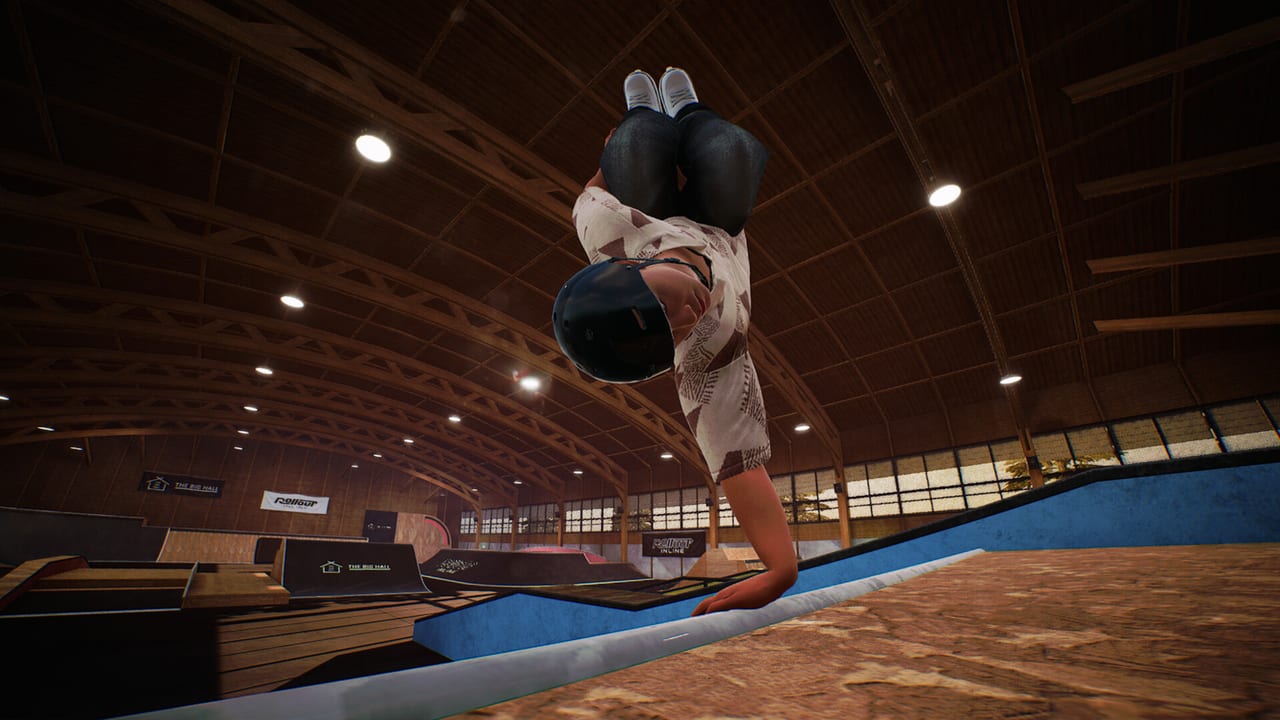
Rollout Inline is Steam Deck Verified, which is the right starting assumption and the wrong finishing one. MLMEDIA posted official Steam news on September 10, 2026 titled “Rollout Inline is now Steam Deck Verified!”, asking players to wishlist and play on September 15. For announcement context, timeline versus Early Access, and what the badge does not promise, see Steam Deck Verified Announcement. Valve’s checklist means the default handheld story is intended to work: the game boots, the built-in analog sticks count as the required controller, and the interface is readable on the Deck screen. It does not mean every vert cage holds 60 FPS forever, or that a leftover community layout cannot sabotage dual-stick grinds. This page is the handheld and docked setup guide. Parent index: Tools Hub.
Pair it with Controller Setup for Xbox and PlayStation pad rules, and with System Requirements for the PC spec sheet and the 60 FPS philosophy. If you have not skated yet, skim Getting Started after this page, not before input feels honest.
What Verified actually guarantees
Steam Deck Verified is a compatibility badge, not a performance trophy. For Rollout Inline it confirms the title is expected to play in handheld with the Deck’s own sticks. The game still:
- Requires a controller (the Deck sticks qualify; keyboard and mouse do not exist as a fallback)
- Wants high frame rates, with 60 FPS as the practical floor
- Uses a dual-stick language: left stick steer/spin, right stick jump, both sticks for grinds and cess slides
- Ships an English-only interface
- Is single-player only
If a friend tells you Verified means max settings at 90 Hz with no caveats, they are describing a different genre. Aggressive inline on analog sticks punishes hitching harder than a turn-based RPG. Three launch maps still include busy pools and long rails that cost more than a quiet corridor.
Connect-before-launch still applies
The Steam page asks you to connect or wake your controller before starting the game. On Deck that rule does not vanish.
Handheld: fully wake the device, confirm the game’s controller settings in Steam, then launch Rollout Inline. Do not boot the title from a half-sleep state with sticks still initializing.
Docked: plug in or wake the external pad before you start the game. Hot-plugging an Xbox pad after the title screen is a classic source of dead sticks or missing vibration. If you started a session bare-handed, quit fully, confirm the pad in Steam Input, then relaunch.
PlayStation pads on a docked Deck should use USB only, matching Steam’s DualShock/DualSense support listing. Prefer a wired connection from the start—especially while you calibrate—because wireless PlayStation pads sit outside the officially listed support path.
Controls on Deck sticks
The Deck’s left and right analog sticks are the intended dual-stick device. Treat them like a compact Xbox-style pad:
- Left stick aims and spins while you ride
- Right stick jumps
- Both sticks together place feet for grinds and cess slides
Do not “fix” skating by mapping tricks to the trackpads, d-pad, or gyro on night one. Steam Input should present a standard gamepad to the title, not invent a keyboard overlay. Keyboard and mouse are unsupported for a reason; a layout that secretly types keys will fail in confusing ways.
If sticks feel inverted, dead, or double-mapped, open per-game controller settings and reset to a default gamepad template. Community layouts copied from other skating games are a frequent culprit. Full recovery steps live on Controller Setup. Once hardware behaves, learn the intended roles in Controls.
Thumb reach on Deck sticks is shorter than on a full-size Xbox pad. Dual-stick grinds that need simultaneous odd angles can feel cramped during long challenge batches. That is a comfort issue, not a broken Verified badge. If your hands fatigue mid-rail, you are not imagining it—dock and continue with a larger pad.
Performance tips: chase 60 FPS
Rollout Inline plays best at high frame rates. Dual-stick corrections, landings, and grind holds all read better when frame time is stable. On Deck, treat 60 FPS as the goal for serious practice, even if pretty reflections look nicer at 40.
Practical handheld triage:
- Turn on the performance overlay while you learn a park from Maps Overview.
- Cap refresh in a way you understand—know whether you are holding 60 or oscillating.
- Lower shadows, post-processing, and anti-aliasing first.
- Drop resolution scale if you must choose between blur and sticky sticks.
- Re-test on a long rail and in a busy pool or vert cage; costs differ.
- Avoid stacking heavy plugins, recording overlays, or a browser while you diagnose.
Thermal throttling on a sofa session feels like skill regression. If a grind you landed this morning starts dumping you after forty minutes, check clocks before you rewrite your stance. A cooler room, a stand that does not smother vents, and shorter sets help more than a new trick tutorial.
If FPS is stable and inputs still fail, stop tuning graphics and return to Steam Input. Dual-stick skating cannot tell the difference between a bad layout and a bad night until you isolate them.
Graphics triage without a special Deck preset
There is no magic official Deck profile you must download. Use the same philosophy as desktop: pretty parks are optional; responsive sticks are not. A roughly 2 GB install is tiny on Deck storage, so keep the game on fast internal storage when you can. After moving it to an SD card, verify files if hitching appears.
DirectX 12 and the lightweight footprint are why Verified was realistic. They are not a license to max every slider in a packed pool. Keep a challenge profile at a locked comfort frame rate, and optionally raise visuals during casual free-skate nights. Harder batches after map level-ups punish late corrections; do not raise shadows on the same evening you push a new difficulty tier.
For the published PC minimums and recommended RAM notes, stay on System Requirements. Deck users still benefit from that page’s 60 FPS argument even when the CPU and GPU names are desktop SKUs.
When to dock with an Xbox pad
Dock when:
- You are pushing a harder challenge batch and need full-size sticks
- You want the force feedback the store recommends on Xbox controllers
- A session will last long enough for Deck sticks to cramp
- You are filming replay-editor work on a larger screen
- Wireless PlayStation pads have already failed you once tonight
Xbox remains the recommended pad for comfort and rumble. Docked Deck plus Xbox pad is, for many players, the best Rollout Inline setup in the house: Verified software, living-room screen, trustworthy analog tension.
Connect that Xbox pad before launch. Keep Steam Input simple. Then skate. DualShock and DualSense can work over USB on the dock; treat Bluetooth as a later convenience, not the diagnostic default.
Handheld remains excellent for drill loops: ten minutes of left-stick riding, a handful of right-stick hops, one short rail. Use Deck on the go; dock for the unlock night.
Practice habits that survive handheld
Busy maps tempt you to flick through challenge pins while the overlay is still red. Don’t. Free-skate a quiet corridor until frame time and stick response feel immediate, then open the board. Rail-heavy parks teach dual-stick foot placement; vert and pools teach pump and air timing—and they also cost more GPU. Pick the space that matches today’s goal, using Maps Overview as the scout.
If a layout you loved on desktop feels mushy on Deck, it is probably settings or thermals, not a different physics build. Confirm that before you downgrade your expectations or assume Early Access “broke” overnight.
English-only UI is the same on Deck as on PC. Single-player sessions mean you are not fighting lobby NAT on handheld; you are only fighting your own frame time and stick hygiene.
Related tools and guides
- Tools Hub — index of setup pages
- Controller Setup — connect-before-launch, USB PlayStation tips, Steam Input
- System Requirements — 60 FPS philosophy and desktop specs
- Controls — intended stick roles once the Deck is honest
- Getting Started — first-hour plan after setup
- Maps Overview — which parks punish handheld performance
- Steam Deck Verified Announcement — official September 10, 2026 Verified news and timeline versus launch
Keep this page bookmarked for the whole Early Access lifetime. Solo-developer patches and SteamOS updates can both nudge input or clocks. Verified got you in the door. Stable 60 FPS and clean dual-stick data keep you on the rail.
Frequently Asked Questions
Quick answers for aggressive inline players.
Is Rollout Inline Steam Deck Verified?
Yes. Official Steam news on September 10, 2026 confirmed the badge before the September 15 Early Access date. Verified means the default handheld controls story is intended to work. You should still chase 60 FPS and confirm Steam Input. Announcement recap: Steam Deck Verified Announcement.
Do I still need an external controller on Deck?
No for handheld—the built-in analog sticks count. A controller is still required in general; keyboard and mouse are unsupported. Dock with an Xbox pad for comfort; see Controller Setup.
What FPS should I target on Steam Deck?
At least 60 FPS. Rollout Inline plays best at high frame rates. Lower settings using the triage on System Requirements if you dip.
Should I install a community Steam Input layout?
Not on night one. Reset to a default gamepad template so dual-stick grinds reach the game cleanly. Details in Controller Setup.
When should I dock with an Xbox pad?
For long challenge sessions, force feedback, and full-size stick angles. Connect the pad before launch, then return to Getting Started or Controls.